%2520in%2520OptiMantra.png)
e-Prescribing (eRx) can dramatically streamline clinical workflows, reduce errors, and improve patient convenience - it’s also a requirement in most states if you are doing controlled substances. As a provider using OptiMantra, you can connect directly to e-prescribing—including for controlled substances—through our partnership with MDToolbox, a Surescripts-certified solution.
In this guide, we’ll walk you through how to set up, use, and troubleshoot eRx in OptiMantra so you can begin prescribing efficiently and compliantly.
Why eRx Matters in Integrative and Specialty Care
From managing compounded prescriptions to sending scheduled medications securely, eRx offers a streamlined digital workflow that saves providers time and makes it easier for patients to access their medications, driving better outcomes. For practices focused on whole-person care, having a reliable and integrated e-prescribing tool ensures all of the patient’s medication history is securely tracked in one place. With OptiMantra’s direct integration with MDToolbox, providers can prescribe electronically without leaving the platform, ensuring a smooth experience for both clinicians and patients.
Step-by-Step: How to Set Up eRx in OptiMantra
Step 1: Confirm Provider and Practice Information
Before activating eRx, ensure your OptiMantra settings are complete and accurate:
- Fax Number: Go to Settings > Locations > Fax Accounts to add your fax number
- If you have an existing fax number you can add it there! Please note your existing fax number allows you to sign up for eRx, but will not allow you to send or receive faxes within the OptiMantra program.
- Want integrated faxing? OptiMantra can assign or port a number for $25/month per line (up to 250 pages).
- Provider Credentials: Navigate to Settings > Provider Settings > Edit Profile:
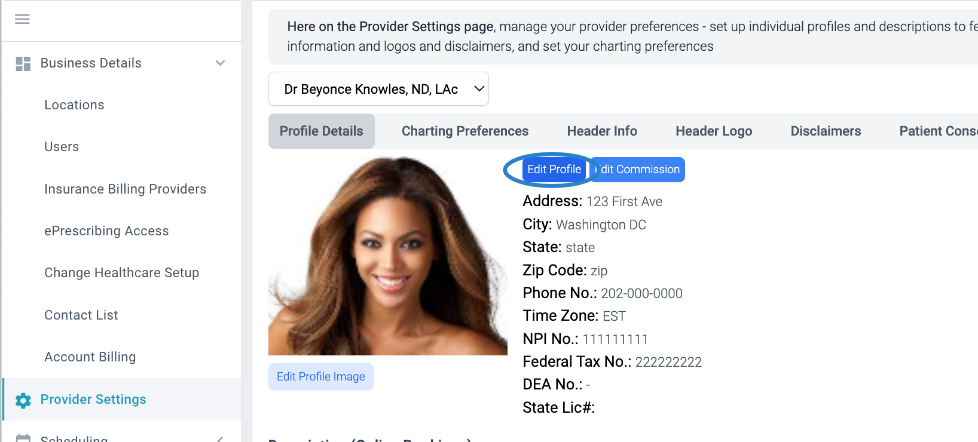
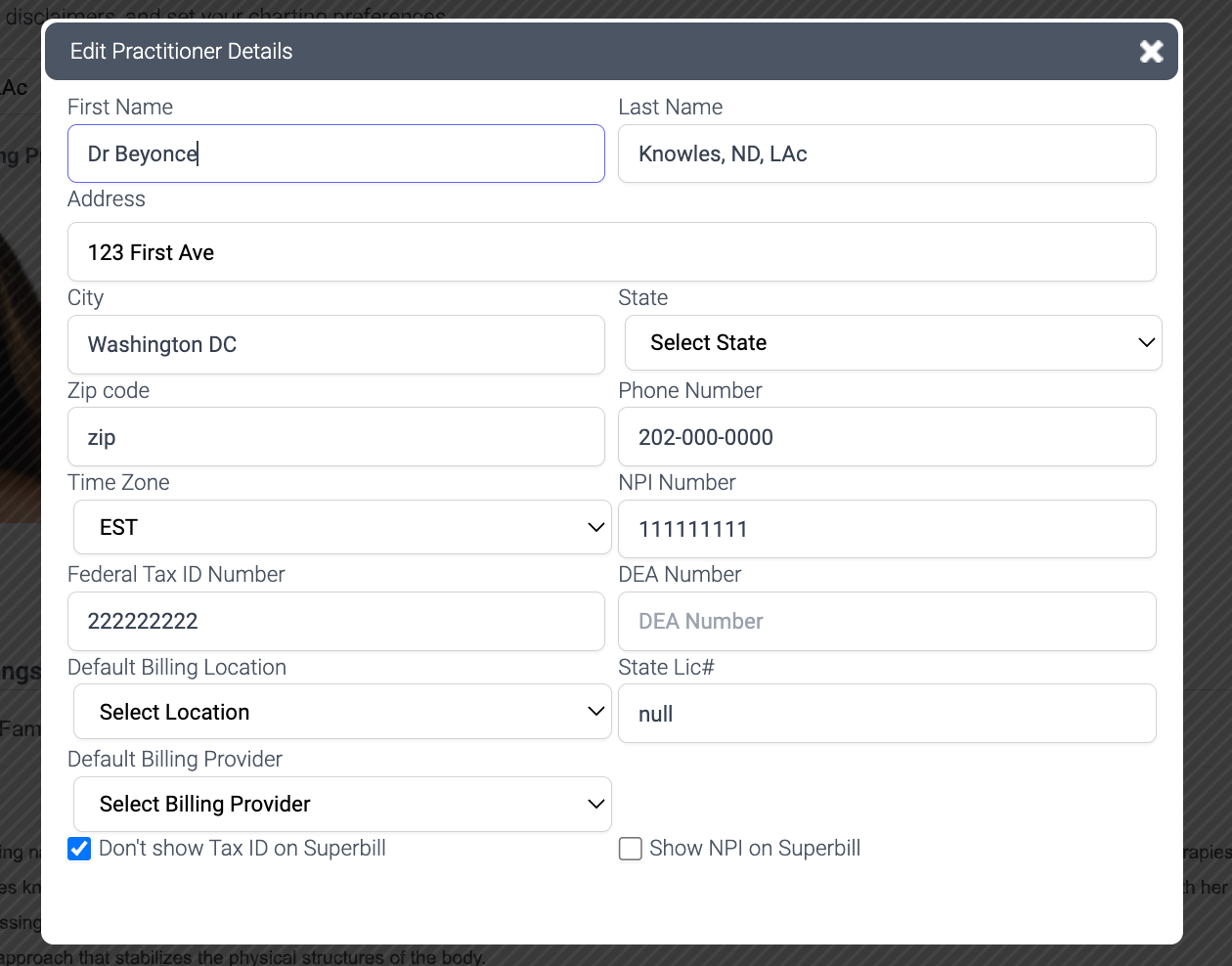
- Add your credentials after a comma in the “Last Name” field (e.g., Knowles, ND or Jones, PMHNP).
- Note that your credentials suffix cannot be more than 10 characters long, so the most important thing is to include your prescribing credentials
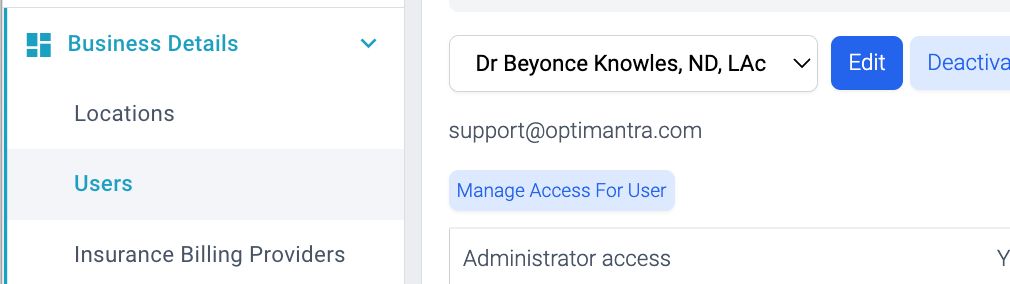

- Ensure your address, DEA, NPI, and State License numbers are entered and accurate.
- If you don't have a tax ID or a DEA, please type in NA
- Please ensure this information is accurate, you will not be able to change the information once the information is submitted to MDToolbox. Any inaccurate information will have to be resolved separately with MDToolbox, which will delay sign up.
- If you prescribe controlled substances and are a solo provider, you will need a trusted individual to receive a verification code at the end of set-up in MDToolbox, which you will then need to save.
- Add them as a user in your account (Settings > Business > User Management)
- Enter their first and last name along with an email address. You do not need to assign them a role.
- Add them as a user in your account (Settings > Business > User Management)
- If you have to have a supervising physician for any prescriptions:
- You can set them up just like prescribers, and they can serve as your second if needed
- Click on the head and shoulders icon to the right of your name when opening an eRx box to get their info added to the prescription
- MD Toolbox charges for each eRx user. If you have a supervising physician that needs to prescribe specific drugs (i.e. Schedule 2), you will be charged the MD Toolbox eRx fee for your supervisor as well.
- You can set them up just like prescribers, and they can serve as your second if needed
- Please add any supervising physicians to Settings > Business > OptiMantra Subscription > eRx add-on.
Step 2: Add eRx to Your OptiMantra Subscription
If you haven't already signed up for OptiMantra, you will need to add a card on file, sign our User Agreement, and add your subscription details before adding eRx.
- Go to Settings > Business > OptiMantra Subscription, then add the number of eRx users under the eRx Add-On.
- This will automatically open a ticket with our support team, who will walk you through the remaining steps within that ticket.
- eRx is $38/month.
- For existing customers who don’t see this page, please create a ticket manually.
To expedite setup, in your ticket provide:
- The name of your Second/Identity verifier or supervising physician
- A color copy of your driver’s license
- A legible copy of your DEA Certificate
We'll schedule an identity verification call at your NPI registry number before walking you through finalizing the set-up.
Step 3: Complete eRx Registration in MDToolbox
Once access is granted, each user must log in to their account through OptiMantra:
- Go to any patient actions box.
- Click Patient Actions > eRx under Clinical Actions to be listed as staff or prescriber.
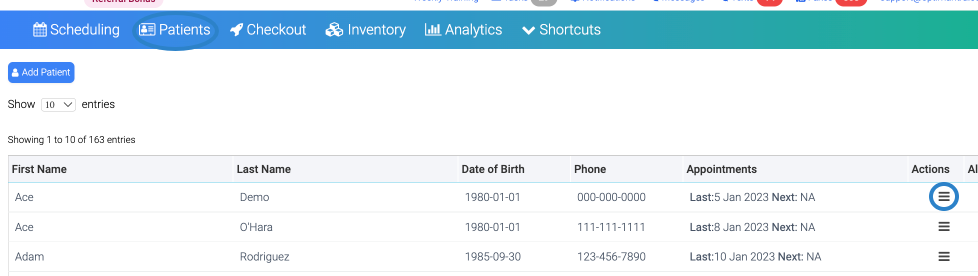
- MDToolbox will launch in a new window. Follow the prompts to finish setup.
- The process of verification takes about 30 minutes - to complete it you may need to provide a photo ID and/or answer personal questions
- Your second for controlled substances will also need to do this process
- Please note only the prescriber should be attempting the set-up!
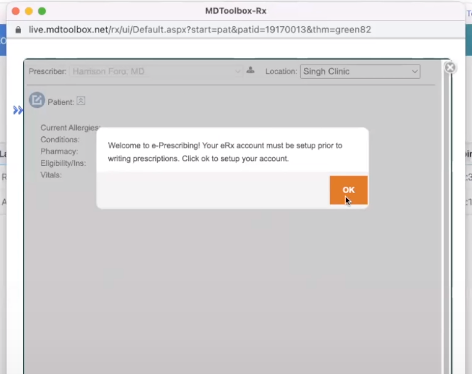

- If you already started the set-up and you don't see this log in, go to the two blue arrows on the left side of the screen, then Setup & Tools > Practice Setup
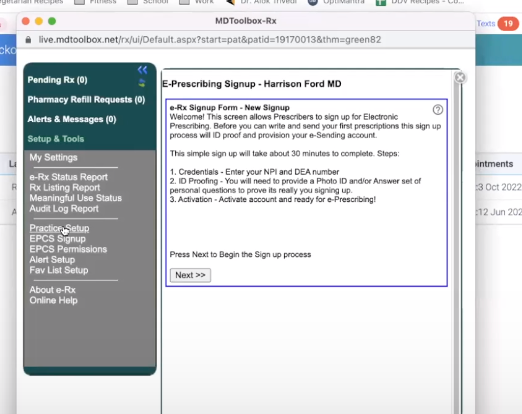
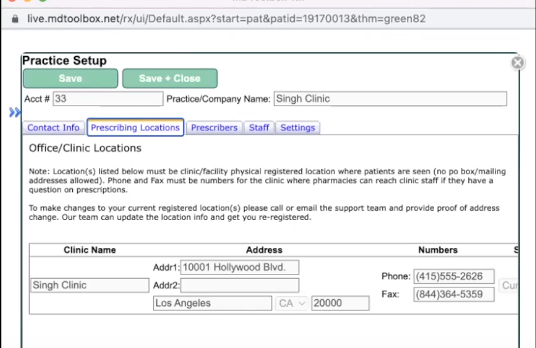
- Go through verifying your Practice Setup including:
- Prescribing locations
- Prescribers
- Staff
For Controlled Substance Prescribing (EPCS):
- Your second (non-EPCS) user needs to log in and connect to eRx first in order to establish their identity (and then subsequently validate the primary prescriber).
- Our team will walk you through these steps
- Log into OptiMantra
- Click on any Patient Actions box in the program
- Select eRx in the pop-up
- This will pull up and connect eRx via OptiMantra first
- Then follow the above steps.

Set up your token:
Complete the EPCS signup and token registration under Setup & Tools > Practice Setup in MDToolbox. If you have EPCS Signup instead of EPCS Token in the list under Practice Setup, it means you haven't set up your token yet.
To do so click on the EPCS Signup page:
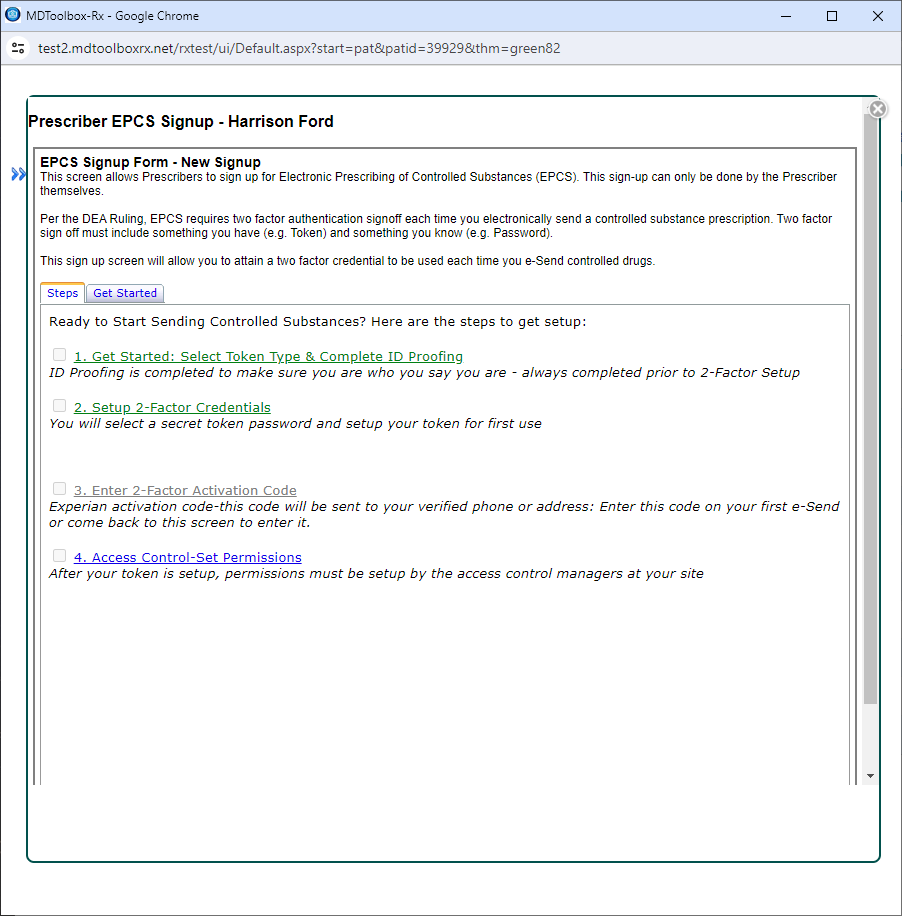
Work your way through all 4 items which will include downloading the App "VIP Access" to your phone as your token
- Please note that if you'd prefer to use a FOB for verification instead of the free VIP Access app, this is available for $50 (to send the hardware) plus $5 per month ongoing.
- Keep track of the Activation code and the password you set up for the token, you will need them later.
Then go to EPCS to set the permissions for you and your staff.
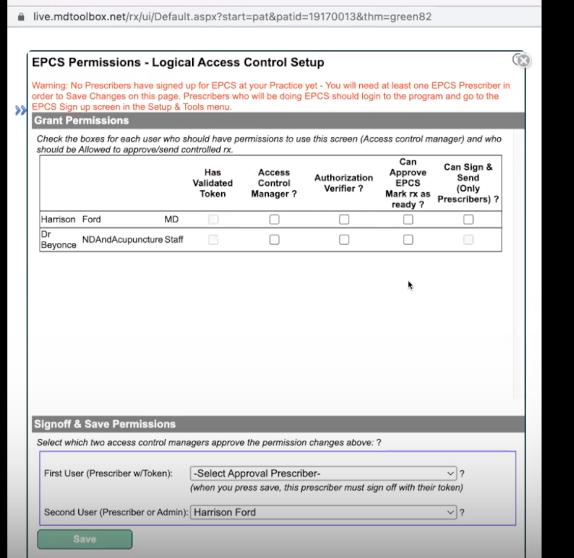
- For the primary user, select all the boxes and choose your name as the First User under ‘Signoff & Save Permissions’
- For the secondary user, when choosing access, you will at least have to select ‘Access Control Manager’ at the very least.
- When you hit Save, you will be asked for an email for your secondary user and then a code will be sent to their email.
- Then enter your token activation codes and a code from the VIP Access app on your phone to finish the process.
If you lose your password or get a new phone go to Set up & tools > EPCS Token and you will find instructions for getting a new token password or setting up a new phone with the token.
Using eRx in OptiMantra
Once setup is complete, prescribing is fast and intuitive:
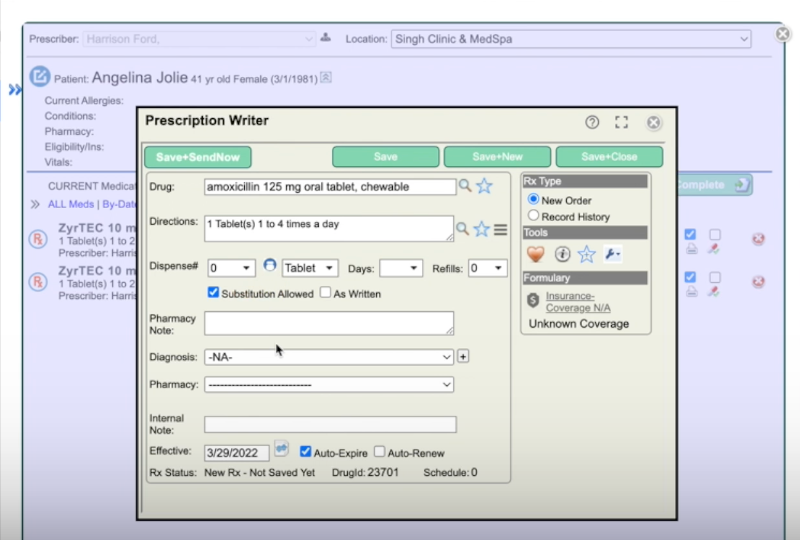
- Open Patients > Actions > eRx (Clinical Actions).
- This will open the prescription writer
- Search for your prescription
- Save it as a favorite by select the blue star under Tools (you'll then be able to click on the Star outline to find your favorite values)
- Pick a pharmacy; you can store up to 3 pharmacies in each patient eRx box
- Add any pharmacy or internal notes
- Set your effective date
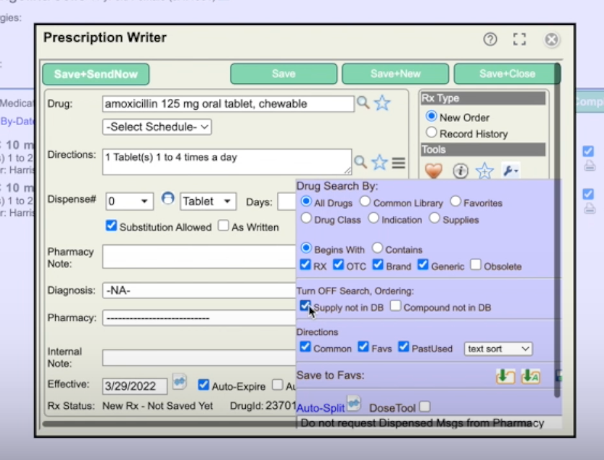
- To prescribe custom compounds:
- Click the blue wrench icon in the Tools section to ‘Turn OFF Search’
- Select ‘Compound not in DB’ to free-type your prescription.
- Hit ‘Save and Send Now’ to send it electronically to the pharmacy of choice
Prescribing Controlled Substances
- Enter the prescription as usual.
- After clicking Save and Send, you'll be prompted to enter:
- Your token password
- A 6-digit code from the VIP Access app
- For compounded scheduled drugs (e.g., testosterone), select the schedule before finalizing the order.
- Select the PMP for your state to check on the patient's use of the scheduled drug and then mark the box for PMP checked.
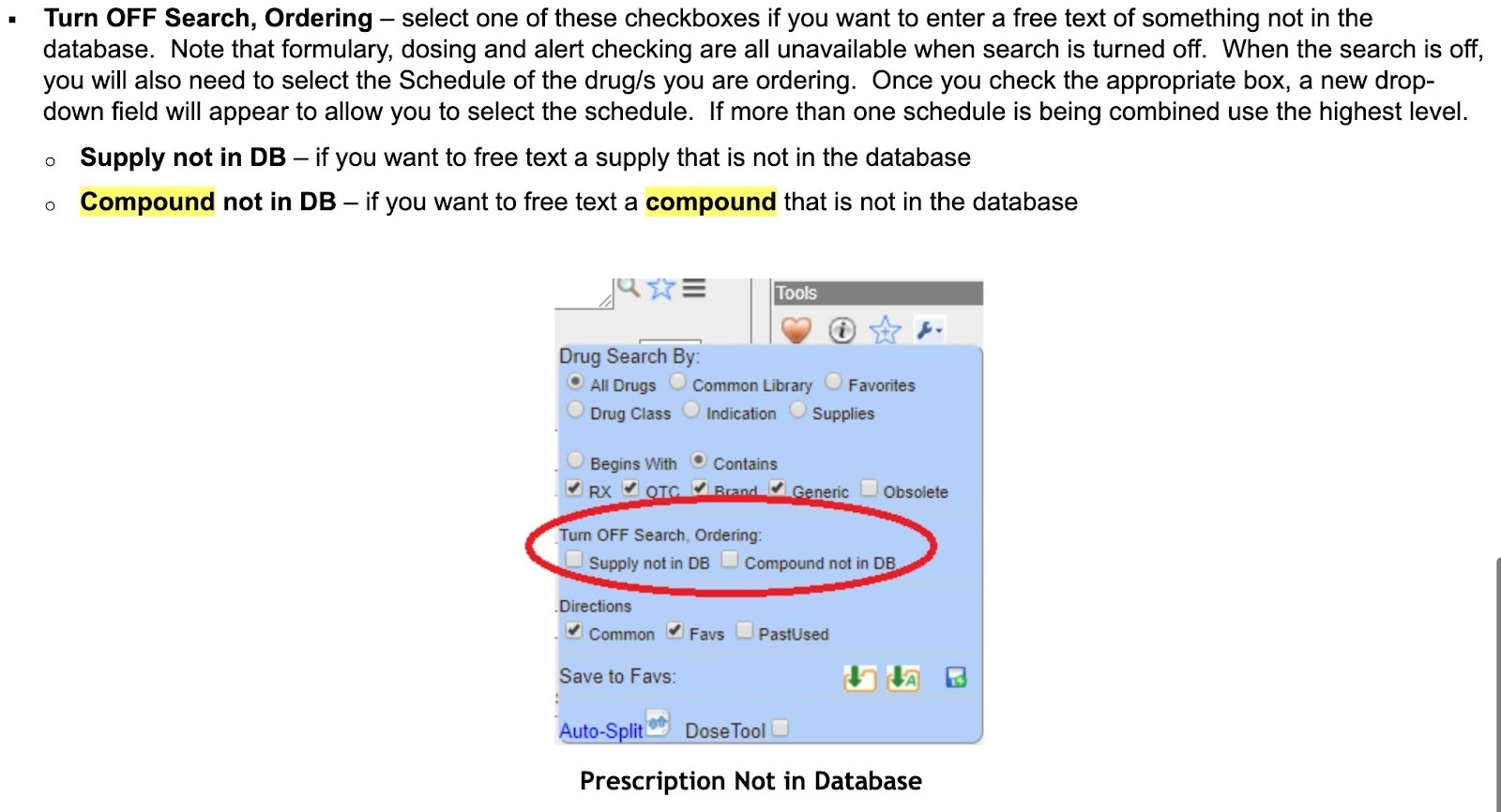
- If a compound prescription is needed for a scheduled drug, select ‘Compound not in DB’ in the ‘Drug Search by’ box (see above image).
- Then select the correct schedule (ie testosterone is Schedule 3)
eRx Troubleshooting & FAQs
Can I use my existing MDToolbox account?
No, you will need to reregister through OptiMantra to take advantage of our direct MDToolbox integration. Fortunately, it's a quick process!
What if I can’t find a medication or need to enter a compounded formula?
If you can't find a medication in the eRx data list or the medication is to be custom compounded, you can still prescribe it!
- In the MDToolbox interface, start a prescription
- Click the wrench icon in the Tools section
- Select ‘Compound not in DB’ in the ‘Turn OFF Search’ section
- When selected dosing and alert checking are unavailable
- You will need to select the schedule when off as well
- Free-type the name in the med box
Tip: To help you retrieve this med in the future, when set up, click on the down arrow for favorites (also in the tools box).
How do I get help with eRx setup or issues?
MDToolbox handles all eRx-related support. Reach out to their team:
- Knowledge Base
- Phone: (206) 331-4420
- Email: support@mdtoolbox.com
What do I do if the system says I already have an MDToolbox account?
You’ll still need to re-register under OptiMantra to maintain integration as it's considered a different location (and this will also allow you to take advantage of our direct integration). Let MDToolbox know which account should remain active.
If you would like to continue working across two accounts, you will need to let MDToolbox know which is considered your primary. Surescripts, and by proxy MD Toolbox, only allows prescribers to register with one vendor per location for their refills. If you already have an account (even if it's with MD Toolbox) you'll need to close it to allow you to refill requests through OptiMantra.
Can I use my existing VIP Access token?
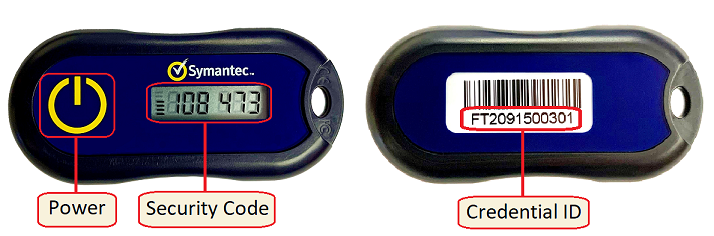
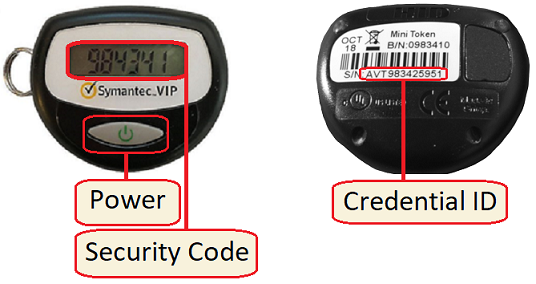
Yes! As long as it’s a Symantec VIP token, you can register it in the OptiMantra-integrated MDToolbox system where there is an option for 'I have an approved token, register it now'.
- A single token can be used with multiple vendors/services - here are the images of the different tokens supported for reference:
Software:

Keyfobs:
How do I access eRx history?
While MDToolbox and Surescript doesn’t support full data migration, you can easily download the past eRx history for a patient from within the network. Learn how here.
Ready to Start ePrescribing with OptiMantra?
eRx is a powerful feature that supports modern, patient-centered care. By following these steps, your practice will be fully equipped to handle prescriptions—including controlled substances—securely and efficiently.
Need help getting started? Log in to your OptiMantra account and submit a support ticket.

.png)